
How to Design a Halloween Movie DVD Cover Using AI
Creating a custom DVD cover for your October horror movie marathon has never been easier. While AI image generators excel at creating stunning, spooky artwork, they lack the ability to format images to exact physical dimensions. This tutorial explains how to combine AI-generated graphics with the precision of RonyaSoft CD DVD Label Maker to design and print a perfectly sized Halloween DVD cover.
Halloween Movie DVD Cover
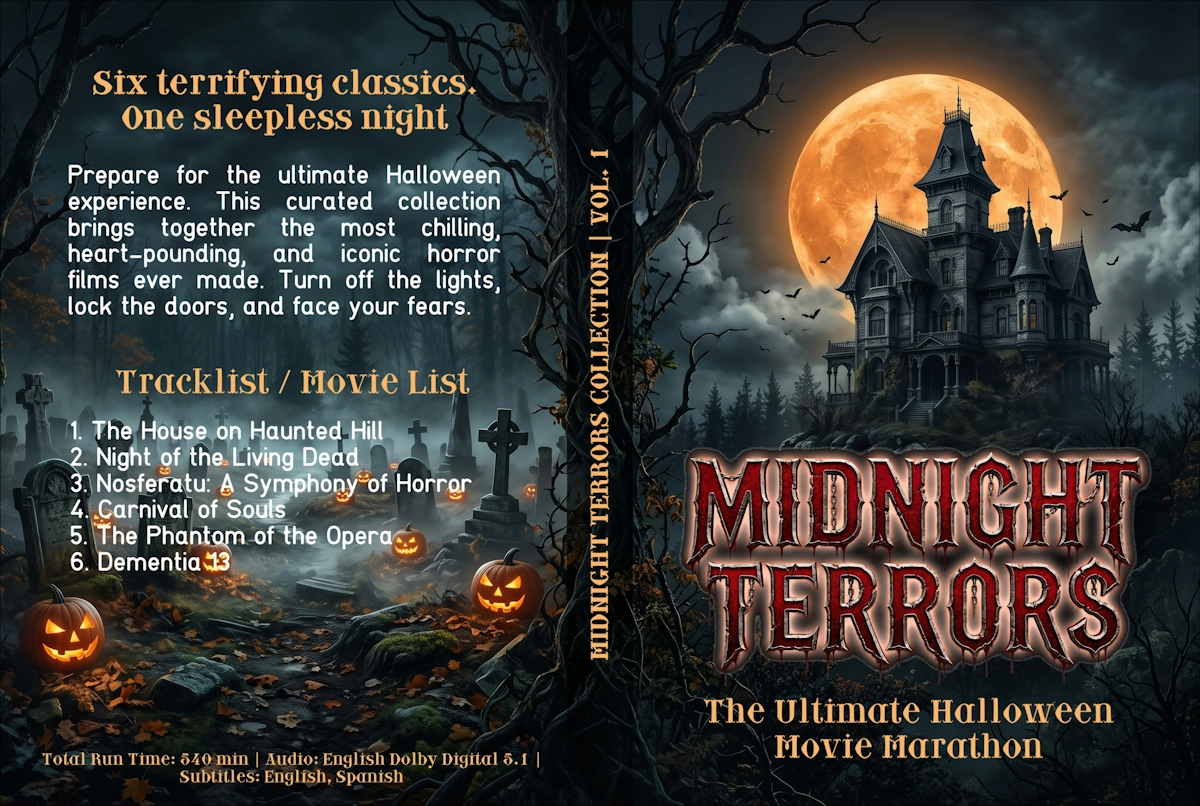
(Click to enlarge)

Quick Summary: To create a custom Halloween DVD cover, generate a 3:2 aspect ratio image using an AI tool. Then, open RonyaSoft CD DVD Label Maker, select the Standard DVD Cover template, insert your AI artwork as the background, add your movie titles, and print at exactly 273mm wide x 183mm high (10.75" x 7.2").
Following our tips, you will learn how to print CD labels:
Step 1: Generate Spooky Artwork with AI
Start by generating your cover art. You can use tools like Midjourney, DALL-E, or Grok to create high-quality images. Since a standard DVD Keep Case wraps around the front, spine, and back, you need a wide image. Always specify a 3:2 aspect ratio in your prompts.
Background Prompt: Wide panoramic Halloween scene, 3:2 aspect ratio. On the right side: a haunted Victorian mansion. In the center: twisted dark tree branches. On the left side: a misty graveyard with glowing jack-o'-lanterns. Dark cinematic lighting, highly detailed, 8k, eerie atmosphere --ar 3:2
AI Generated Background Image
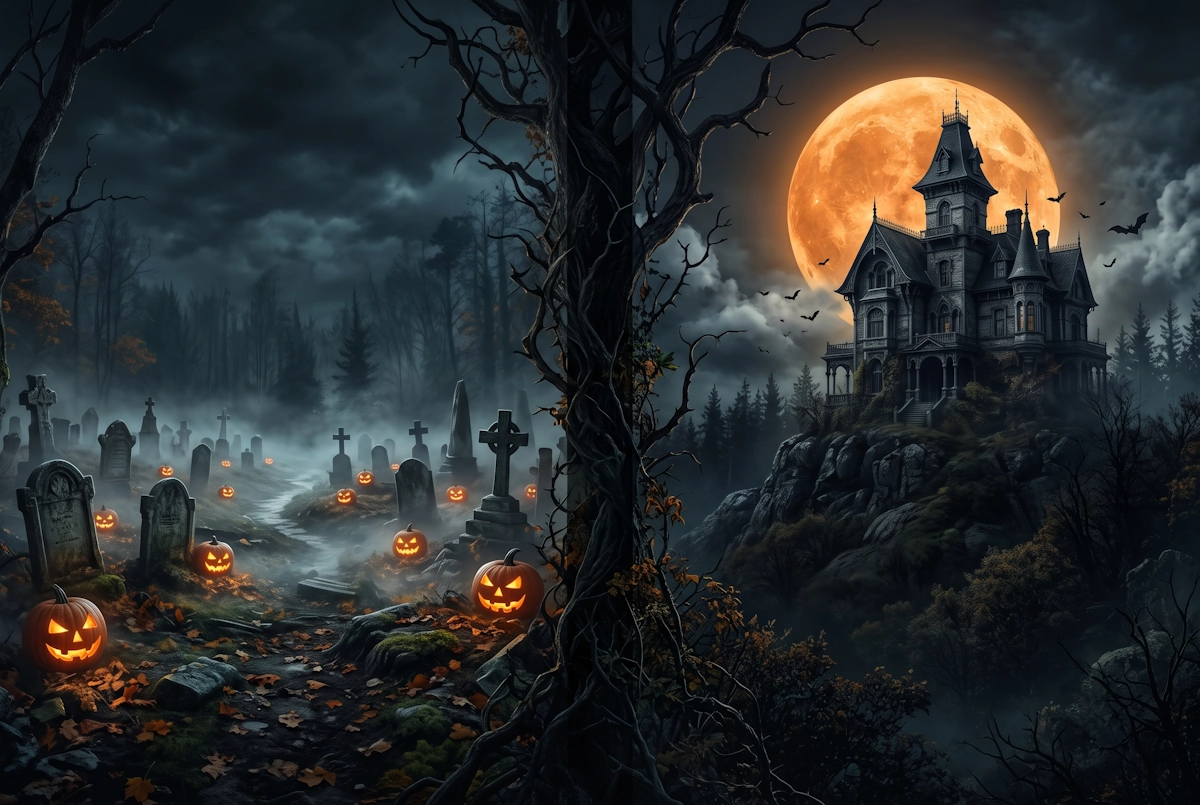
(Click to enlarge)
You can also generate separate typography graphics. For example, a heavy gothic-metal style text for the title that can be imported as a secondary transparent layer.
Typography Prompt: Typography graphic of the words 'MIDNIGHT TERRORS' in two stacked lines. The font should be a heavy, distressed, gothic-metal style, with jagged, eroded edges. The color of the text should be a deep, textured crimson red, with highlights of aged silver. Integrated into the text are subtle dripping elements. The whole title should have an eerie, subtle orange and white glow effect against a pure, solid black background. Prominent, terrifying, and readable. High-resolution graphic --v 6.0
AI Generated Typography
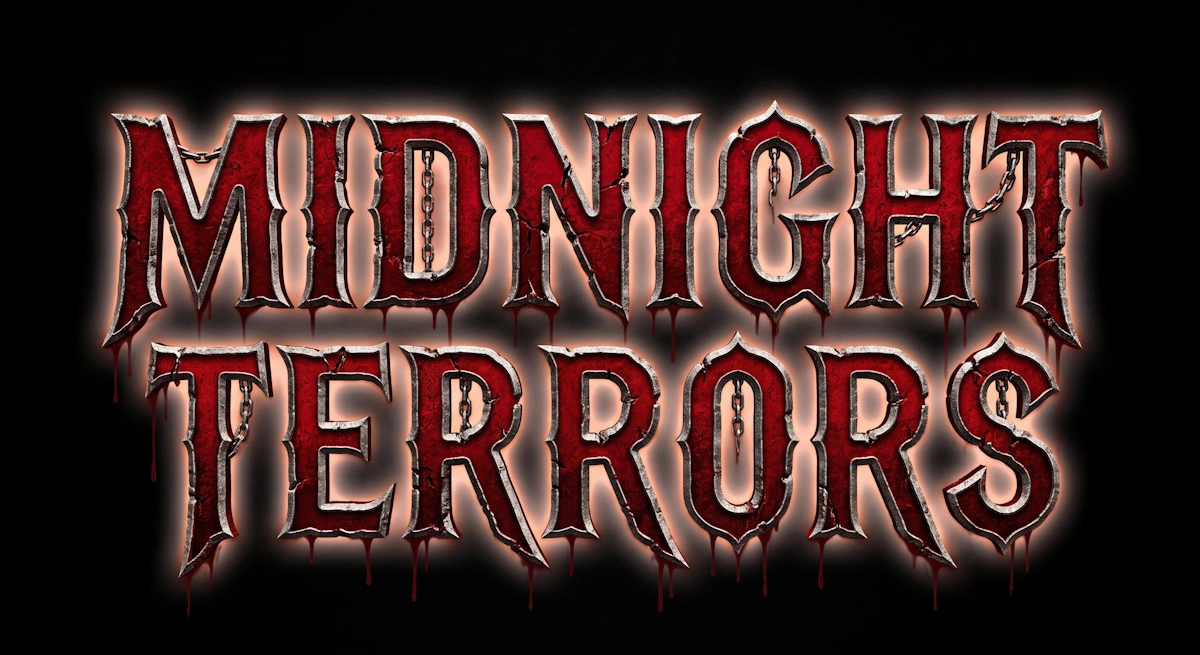
(Click to enlarge)
Step 2: Choose the Standard DVD Cover Template
Once you have saved your AI-generated images to your computer, launch RonyaSoft CD DVD Label Maker. In the Choose a Template window, navigate to the templates section and select Standard DVD Cover. This ensures your final print will match standard plastic DVD boxes perfectly. For more details on various case sizes and their specifications, refer to our comprehensive guide on popular DVD case dimensions.
Choose a Template Dialog Box
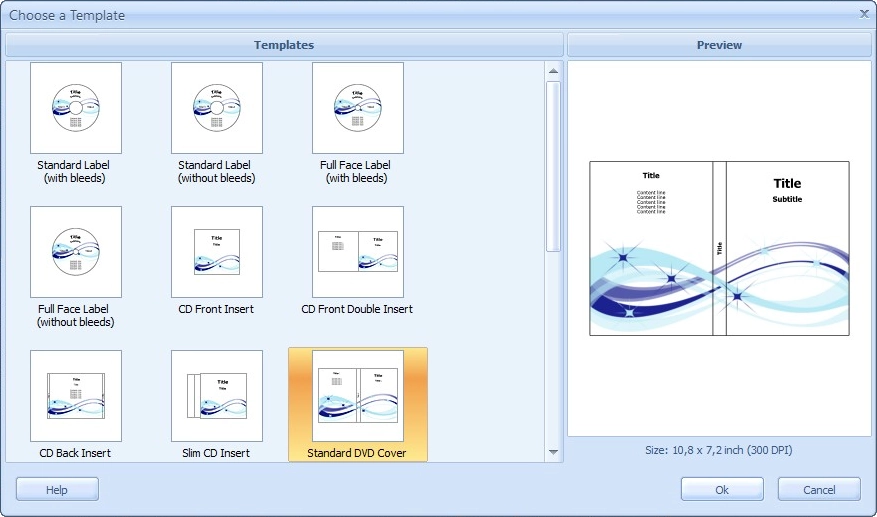
(Click to enlarge)
Step 3: Import Your AI Art and Add Movie Titles
Click on the Insert Image tool in the toolbar and load your panoramic AI background. Stretch it to cover the entire template area.
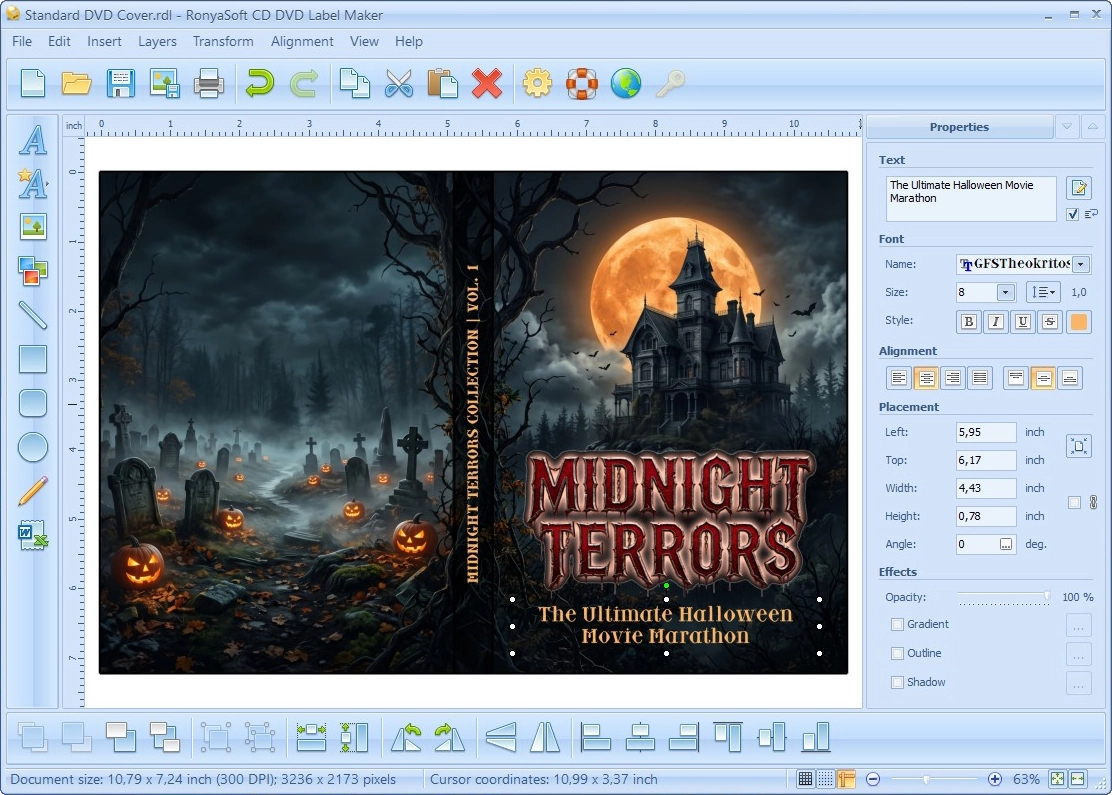
Next, use the Text tool to add your Halloween movie list to the back cover area, and the spine text. In the 'Properties' panel on the right, you can adjust the font (e.g., GFSTheokritos), size, and color. To ensure readability against dark backgrounds, apply a bright font color and use the Effects panel to add a shadow or outline.
Text Properties Window
(Click to enlarge)
Step 4: Print Your Halloween Cover
Once your design is complete, click the Print icon. Ensure your printer is loaded with standard A4 or Letter-sized paper (glossy paper is recommended for deep, rich colors). Verify that scaling is set to 100% so the dimensions remain accurate. Print, cut along the guidelines, and insert the paper into your DVD case sleeve.