
How to Perfectly Align and Print Custom CD/DVD Labels on Pre-Cut Sheets
Printing custom CD or DVD labels on pre-cut adhesive sheets often results in misaligned text, wasted paper, and frustration. Generic text editors and basic image software lack the specialized grid coordination required for precise circular label printing. When a design shifts even one millimeter during hardware feed, it compromises the professional presentation of the physical media.
Key Takeaways for Perfect Printing
Achieving exact alignment requires three elements: disabling printer scaling (100% Actual Size), selecting the exact paper template profile (e.g., Avery, Neato), and utilizing proper bleed margins. RonyaSoft CD DVD Label Maker automates these micro-measurements and provides manual calibration to counteract hardware shift.
Perfect CD/DVD Label Alignment

(Click to enlarge)

1. Identifying Pre-Cut Label Formats (Standard vs. Full Face)
Label sheets vary significantly in layout coordinates, vertical spacing, and inner hole dimensions. Applying a generic circular crop will result in overlaps.
- Standard Labels: Feature a 41 mm (1.61 in) center hole. This leaves the transparent plastic inner ring of the CD/DVD exposed.
- Full Face Labels: Feature a smaller 15 mm (0.59 in) center hole. This provides maximum printable surface area, extending the design up to the physical hub of the disc.
Full Face vs. Standard CD Labels

(Click to enlarge)
Furthermore, sheet formats differ by region. North American brands typically fit two labels onto a US Letter sheet. European brands format two labels onto an A4 sheet. The vertical distance between the two circles is completely different between A4 and Letter formats.
2. Printer Setup and Driver Configuration
Software accuracy is nullified if the printer driver is allowed to modify the output dimensions. Before initiating a print job, enforce the following parameters within your printer properties:
- Disable Scaling: Ensure settings such as "Fit to Page", "Scale to Fit", or "Shrink to Printable Area" are deactivated. Scale must be explicitly set to 100% or Actual Size.
- Set Media Type: Modify the paper type from "Plain Paper" to "Labels", "Heavyweight", or "Matte". This adjustment reduces the rotational speed of the printer rollers, preventing the slick backing of the adhesive sheet from slipping during paper feed.
3. Managing Bleed and Hardware Calibration
Printers possess an inherent mechanical margin of error, typically shifting paper by 1 to 2 millimeters during intake. To mitigate this, designs must incorporate a Bleed Area—extending the background color or image past the physical cut-lines of the label.
If the mechanical shift is consistent (e.g., every print is exactly 2mm too high), you must calibrate the software to counteract the hardware.
RonyaSoft Printout Setup and Calibration
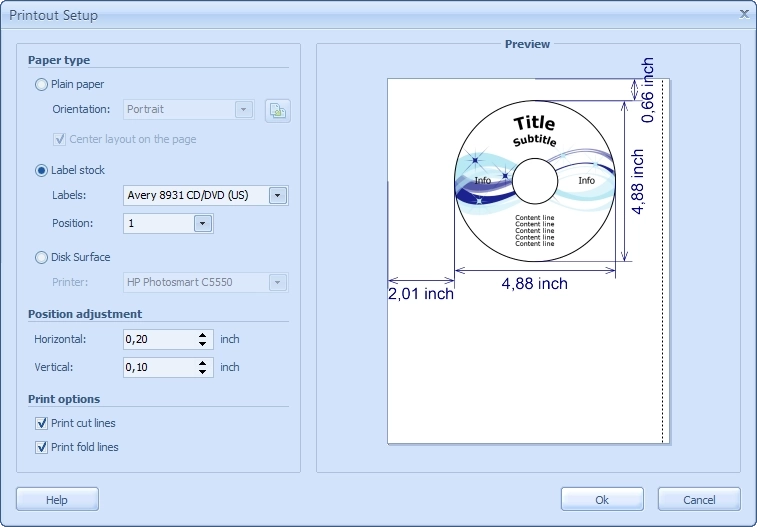
(Click to enlarge)
Within RonyaSoft CD DVD Label Maker, navigate to the Printout Setup dialog. Under Position Adjustment, input numerical offsets for the Horizontal (X-axis) or Vertical (Y-axis) vectors. If your printer prints 2mm too high, set the Vertical adjustment to +2.00 mm to digitally force the print head lower.
4. Most Popular Supported Pre-Cut Label Brands
Selecting a reputable manufacturer guarantees better adhesive quality and consistent die-cut positioning across multiple sheets. The market currently relies on a few major standards for both standard and full-face templates:
- Avery®: The dominant standard in North America for both inkjet and laser printers. Highly demanded templates include Avery 8931, 8960, 5931, and 8692.
- Neato® & Memorex®: Preferred by independent artists and photographers for high-gloss media face labels. Notable templates include Neato CLP-series and Memorex standard inserts.
- CD Stomper® & Meritline: Cost-effective solutions widely used for high-volume CD/DVD duplication and bulk printing.
- A4 Standards (PressIt, Herma, Zweckform): The primary formats used in European markets, structurally designed to accommodate A4 vertical spacing.
RonyaSoft software is pre-configured with geometric profiles for hundreds of these sheets. To check if your specific paper stock is compatible, view the complete directory of supported CD and DVD labels.
Expert Answers to Common Questions (FAQ)
Article written by Yurii Naidiuk, Technical Content Engineer & SEO Specialist.